Using GitHub to Manage GitHub (Part Deux)
What if you accidentally stick your laptop in the washing machine and don't have a good backup?

In a previous post, I wrote about using GitHub to manage GitHub by creating Terraform Resources. This was a pretty basic configuration and it was limited to running from one computer.
We live in a modern era though and we can use cloud services and deployment pipelines to make it so we're never tied to one machine and we can leverage all of the functionalities of source control. Branch protection, security gates, the whole lot.
In this post, we'll work on setting up a remote state. This means that the Terraform can run from anywhere.
Two quick notes:
- You'll need to have an AWS account and the AWS CLI setup for this.
- The source will be updated to match this.
Moving the State to Space
Okay, not really space, yet. Clouds are close to space though.
The .tfstate file is a JSON file (I wrote about it a bit here) that stores the current known configuration of the resources in the cloud. By default, the state file is stored on your machine in the same directory that the main.tf (or wherever you have your providers configured) are stored.
For a lot of use cases, this is okay, but as you move closer to production/enterprise environments you'll want to be able to make changes from anywhere and have the same experience. You'll also want to do this across multiple services and places as you expand your footprint.
Terraform has this idea of a "remote state" which tells the configuration to store its state file somewhere else. Once stored, everything that runs that Terraform will use that remote state. This means that if you and I have the appropriate credentials, we can both work with the same Terraform and have the changes be consistent.
In this example, we'll create an Amazon S3 bucket. I've been working in AWS a lot lately because it's the only cloud I don't have a ton of experience in so I'm trying to use it on my own in a bunch of cases.
Anyways, let's use Terraform to create an S3 bucket.
Setting Up Terraform
First, we'll update the main.tf to include the hashicorp/aws and hashicorp/random providers.
terraform {
  required_providers {
    github = {
      source  = "integrations/github"
      version = "6.9.0"
    }
    aws = {
      source  = "hashicorp/aws"
      version = "~> 6.0"
    }
    random = {
      source  = "hashicorp/random"
      version = "~> 3.0"
    }
  }
}

provider "github" {
  owner = var.github_organization
}

provider "aws" {
  region = var.aws_region
}

provider "random" {
  # Configuration options
}
With the changes that we made, you'll want to run a terraform init to make sure you have all of the necessary providers and then a terraform plan. If you run a plan right now, there should be no changes.
Creating a Bucket
Second, we'll add an S3 bucket. In Terraform file names don't matter, but as I mentioned before I like to follow a naming convention of {PROVIDER}-{RESOURCE_TYPE}-{RESOURCE_NAME}. So in this case, I'll call the file aws-s3-terraform-state.tf.
It's worth noting that S3 bucket names have to be globally unique, so I use the random provider to make sure we have a unique name.
resource "random_string" "terraform_state_suffix" {
  length  = 4
  special = false
  upper   = false
}

# Between the region and the random, we should have a unique name.
# The region in the name also helps keep things organized at a larger scale.
resource "aws_s3_bucket" "terraform_state" {
  bucket = "${var.aws_region}-terraform-state-${random_string.terraform_state_suffix.result}"

  tags = {
    Name        = "terraform_state"
    Environment = "state"
  }
}

# Versioning is optional, but it's nice to have.
resource "aws_s3_bucket_versioning" "terraform_state_versioning" {
  bucket = aws_s3_bucket.terraform_state.id

  versioning_configuration {
    status = "Enabled"
  }
}
You'll notice that I reference the variable aws_region to the file there. This makes sure that we're creating resources across the same region. In most cases the default is us-east-1. I tend to use us-west-2 since it's closer to me. I also do that since most people put production resources in us-east-1 and if I'm bouncing between projects it's an easy way to make sure my resources are going to the right place.
variable "aws_region" {
  description = "The AWS region to deploy resources in"
  type        = string
  default     = "us-west-2"
}
Now we'll run a terraform plan to see what new resources are being created.
The plan output should look something like this:
Terraform will perform the following actions:

  # aws_s3_bucket.terraform_state will be created
  + resource "aws_s3_bucket" "terraform_state" {
        [...]
      + region                      = "us-west-2"
        [...]
      + tags                        = {
          + "Environment" = "state"
          + "Name"        = "terraform_state"
        }
        [...]
    }

  # aws_s3_bucket_versioning.terraform_state_versioning will be created
  + resource "aws_s3_bucket_versioning" "terraform_state_versioning" {
        [...]
      + region = "us-west-2"
        [...]
    }

  # random_string.terraform_state_suffix will be created
  + resource "random_string" "terraform_state_suffix" {
        [...]
      + length      = 6
      + lower       = true
        [...]
      + special     = false
      + upper       = false
    }

Plan: 3 to add, 0 to change, 0 to destroy.
Example terraform plan output.
If you don't see the plan, odds are good there is something incorrect in your AWS configuration.
Assuming we're happy with everything, we'll run terraform apply and the resources will be created.
Do you want to perform these actions?
  Terraform will perform the actions described above.
  Only 'yes' will be accepted to approve.

  Enter a value: yes

random_string.terraform_state_suffix: Creating...
random_string.terraform_state_suffix: Creation complete after 0s [id=yt942l]
aws_s3_bucket.terraform_state: Creating...
aws_s3_bucket.terraform_state: Creation complete after 2s [id=us-west-2-terraform-state-yt942l]
aws_s3_bucket_versioning.terraform_state_versioning: Creating...
aws_s3_bucket_versioning.terraform_state_versioning: Creation complete after 1s [id=us-west-2-terraform-state-yt942l]
Note that the bucket name in this case is: us-west-2-terraform-state-yt942l. We'll need that in a second.
Migrating State
Finally, with everything configured and created we'll migrate the .tfstate to the S3 bucket.
Going back to the main.tf file, we'll add a backend to the configuration.
terraform {
  required_providers {
    [...]
  }
  backend "s3" {
    bucket = "{BUCKET_NAME}"
    key    = "{STORAGE_KEY}/terraform.tfstate"
    region = "{REGION}"
  }
}

[...]
Here's a breakdown of what we'll need here.
- The bucket name we grabbed from the
terraform applystep. - The
keywe'll want to use.- This is a little complicated to explain, but it's where in the bucket the state will be stored. In a lot of cases, you can just use the repo name. My preference is to use a GUID. That makes it so you can use this bucket across multiple Terraform configurations without the states being confused.
- On MacOS/Linux you can run the command
uuidgento create a new GUID.
- The
regionthe bucket is in.- It is worth noting that this cannot be a variable so you have to make sure it matches. It's silly that you can't use variables here, but it is what it is.
In my case, the complete file looks like this:
terraform {
  required_providers {
    github = {
      source  = "integrations/github"
      version = "6.9.0"
    }
    aws = {
      source  = "hashicorp/aws"
      version = "~> 6.0"
    }
    random = {
      source  = "hashicorp/random"
      version = "~> 3.0"
    }
  }
  backend "s3" {
    bucket = "us-west-2-terraform-state-yt942l"
    key    = "AEAAA801-1091-4E6F-B125-5F79B8B8ED0E/terraform.tfstate"
    region = "us-west-2"
  }
}

provider "github" {
  owner = var.github_organization
}

provider "aws" {
  region = var.aws_region
}

provider "random" {
  # Configuration options
}
With everything changed, we'll run terraform init again. This will prompt Terraform to re-evaluate the configuration and it will catch that the backend has been added. It will then ask you if you want to migrate your state.
Initializing the backend...
Do you want to copy existing state to the new backend?
  Pre-existing state was found while migrating the previous "local" backend to the
  newly configured "s3" backend. No existing state was found in the newly
  configured "s3" backend. Do you want to copy this state to the new "s3"
  backend? Enter "yes" to copy and "no" to start with an empty state.
You'll want to make sure to enter yes here to migrate the state. To verify, you can check your S3 bucket in the AWS console and see that the new path and file have been created.
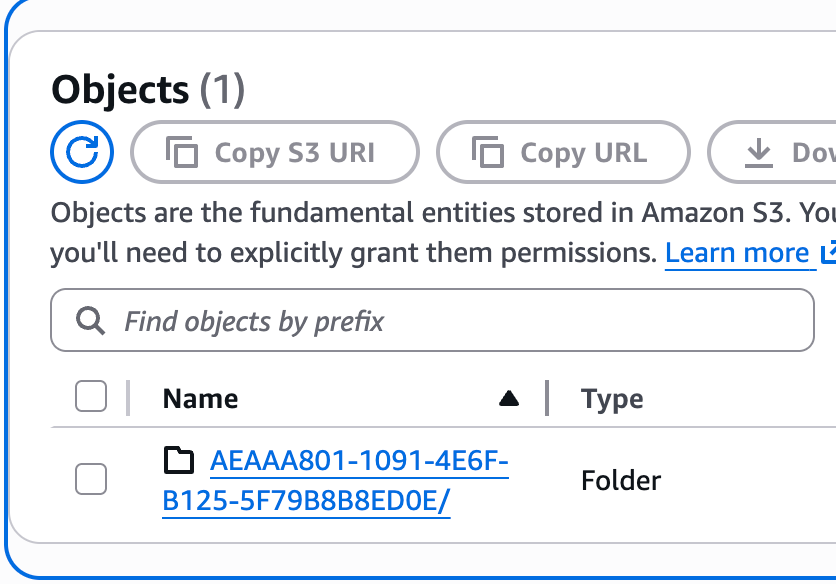
From this point forward, you can run your Terraform from anywhere that you have access to the repository without worrying about the local state file.
Wrapping Up
This was a lot of words and not a lot of code. In the next installment, we'll add a release pipeline to this whole process. That's really going to be focused on enterprise/production environments, but it's a good look at using Terraform at scale and an introduction to GitHub Actions.